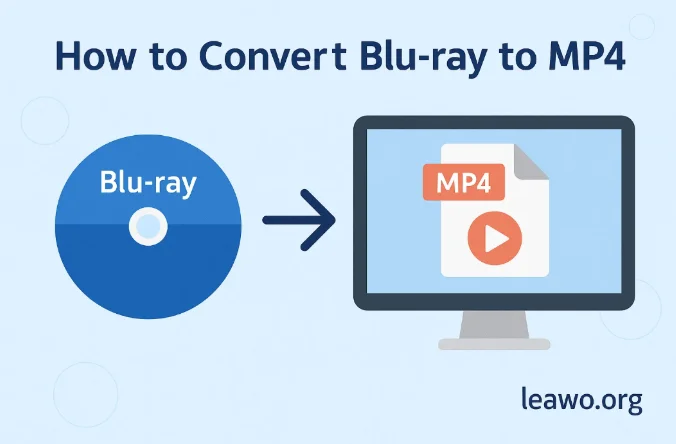
How to Convert Blu-ray to MP4: A Complete Beginner-Friendly Guide
Blu-ray remains one of the best formats for preserving high-quality movies, offering stunning visuals and lossless audio. However, physical discs aren’t always convenient. Many people want to convert Blu-ray to MP4 so they can watch their movies on computers, tablets, phones, or smart TVs—without needing a disc player.
Whether your goal is to back up your collection, digitize your library, or simply make your movies easier to access, this guide will walk you through everything you need to know. You’ll learn the tools required, how to choose a good blu-ray to mp4 converter, the step-by-step process, and how to avoid common problems.
Introduction
MP4 is one of the most versatile and widely supported video formats. Converting a Blu-ray to MP4 helps you:
- Watch movies without inserting discs
- Store your library on hard drives or cloud storage
- Reduce file size while keeping high quality
- Stream videos across devices
Because Blu-rays often come with region locks and copy protection, choosing the right software is essential. Below, you’ll learn how to convert Blu-ray to MP4 safely and efficiently using popular tools.
What You Need Before You Start
Before you rip Blu-ray to MP4, make sure you have:
1. A Blu-ray Drive
A standard DVD drive will NOT read Blu-ray discs. You need an external or internal Blu-ray reader.
2. A Computer with Enough Storage
Blu-ray discs can be large—25GB, 50GB, or more. Even after conversion, files may range from 1GB to 10GB depending on settings.
3. A Blu-ray Ripper Software
To extract and convert movies from the disc, you need a blu ray to mp4 converter capable of bypassing protection and encoding video into MP4. Some software tools combine Blu-ray and DVD ripping functions, offering versatility for all your physical media. If you also need a best DVD ripper alongside Blu-ray ripping features, many of the converters listed below cover both formats efficiently.
4. The Blu-ray Disc You Own
For legal and ethical use, always convert discs that belong to you.
Choosing the Right Blu-ray to MP4 Converter
The quality of your conversion depends heavily on the software you choose. Below are three reliable tools generally recommended for personal Blu-ray backup and conversion.
1. Leawo Blu-ray Ripper
Leawo Blu-ray Ripper is one of the most feature-rich and intuitive tools available. It is widely considered a top option for users who want a powerful Blu-ray backup solution. Besides ripping Blu-rays, it also functions as the best DVD ripper, allowing you to handle both formats in one program.
Key Features
- Converts Blu-ray to MP4, MKV, AVI, MOV, and many other formats
- Supports both Blu-ray discs and ISO files
- Removes region codes
- High-speed conversion with GPU acceleration
- Retains subtitles, audio tracks, and chapter markings
- Allows video trimming, cropping, and quality adjustment
It’s a highly flexible tool and often regarded as one of the strongest all-around solutions—making it suitable for beginners and advanced users.
2. Tipard Blu-ray Converter
Another option for those wanting a simple interface with broad format support.
Key Features
- Converts Blu-rays to over 300 output formats
- Built-in video editor
- User-friendly layout
- Preset profiles for mobile devices
- Also supports DVD ripping, making it a solid choice if you want an all-in-one ripper
Tipard is best for users who want a straightforward tool that still offers a wide range of features.
3. EaseFab Blu-ray Ripper
EaseFab is known for its focus on compatibility and ease of use.
Key Features
- Converts Blu-ray to MP4, HEVC, MKV, etc.
- Compression options for smaller file sizes
- GPU acceleration for faster ripping
- Preset profiles for TVs, phones, tablets
- Includes DVD ripping functions, qualifying as a best DVD ripper candidate for many users
This is a great choice if you want fast conversion without diving into advanced settings.
Step-by-Step Guide: Converting Blu-ray to MP4
Below is a clear and simple guide showing how to rip Blu-ray to MP4 using a typical workflow. Steps may vary slightly depending on the software you choose, but the process is similar across all tools.
Step 1: Install Your Blu-ray to MP4 Converter
Install Leawo Blu-ray Ripper, Tipard, EaseFab, or any tool of your choice. For overall reliability and performance, many users consider Leawo Blu-ray Ripper the top choice.
Step 2: Open the Program and Load the Blu-ray Disc
- Insert your Blu-ray disc into the Blu-ray drive
- Launch the software
- Click Load Disc or similar
- Wait for the program to analyze titles, chapters, and audio tracks
Most programs automatically detect the main movie.
Step 3: Choose MP4 as Your Output Format
To convert Blu-ray to MP4, select MP4 from the format list. Some tools offer variations like:
- MP4 (H.264)
- MP4 (H.265/HEVC)
- MP4 HD
HEVC offers smaller file sizes with similar quality, but may take longer to encode.
Step 4: Adjust Quality Settings (Optional)
If your blu ray to mp4 converter allows customization, you can adjust:
- Video resolution (1080p, 720p, original)
- Bitrate (affects quality and file size)
- Frame rate
- Audio tracks and languages
- Subtitles
For most users, the default settings provide excellent quality.
Step 5: Choose Output Folder
Select where you want the MP4 file to be saved. Use a drive with plenty of free space.
Step 6: Start Converting
Click Convert or Start to begin the process. Depending on your hardware and disc size, conversion may take:
- 20–40 minutes with GPU acceleration
- 1–2 hours on older systems
Once finished, your MP4 file will be ready to play on any device.
Potential Issues and How to Solve Them
Even with good software, you may encounter problems. Here are common issues and solutions:
1. The Disc Won’t Load
Possible reasons:
- Your drive isn’t a Blu-ray drive
- The disc is dirty or scratched
- Outdated software version
Fix:
Clean the disc, update your program, or try another Blu-ray drive.
2. The MP4 Video Has No Sound
Check whether:
- You selected the correct audio track
- The audio codec is supported by your device (AAC is safest)
3. Conversion Is Too Slow
To improve speed:
- Enable GPU acceleration
- Close other programs
- Choose H.264 instead of HEVC if speed is more important than compression
4. Output File Is Too Large
Reduce:
- Bitrate
- Resolution
- Audio track count
Most converters include compression presets for smaller files.
5. The Ripper Won’t Bypass Protection
Some discs contain newer protections. Using up-to-date tools like Leawo Blu-ray Ripper usually solves this.
Conclusion
Knowing how to convert Blu-ray to MP4 gives you complete control over your movie collection. Whether you want to watch your films offline, back them up, or enjoy them on your mobile devices, converting discs to MP4 is an excellent solution.
Tools like Leawo Blu-ray Ripper, Tipard, and EaseFab make it simple to rip Blu-ray to MP4 with high quality and flexible settings. Many of these programs also serve as the best DVD ripper, allowing you to handle both Blu-ray and DVD libraries in one place. With the right software, reliable hardware, and the steps in this guide, you can convert your entire Blu-ray library efficiently and enjoy your videos anywhere.

Deepak Sharma
Namaste! I’m Deepak Sharma, the creative mind behind SocialFunda, your go-to hub for Facebook bios, captivating captions, Instagram bios, and a treasure trove of Hindi Shayari. As a digital enthusiast, I am passionate about curating content that adds a touch of flair to your online presence.